Run a network VA assessment, end to end
This walks one assessment from request to closure, naming what you need at each step, what changes when you act, and where it commonly goes wrong.
Every screen shown here is illustrated with demonstration data.
Before you start
| You need | Why |
|---|---|
| The hosts in scope | Scope is a host list, and it settles later disputes |
| An audit type and cycle | They decide which properties are mandatory |
| An auditor account | An audit can be created without one and cannot be worked |
| Permission to request an audit | Controls you lack are hidden, not disabled |
1. Create the audit
Open Network Security → VA Audits and choose Request New Audit.
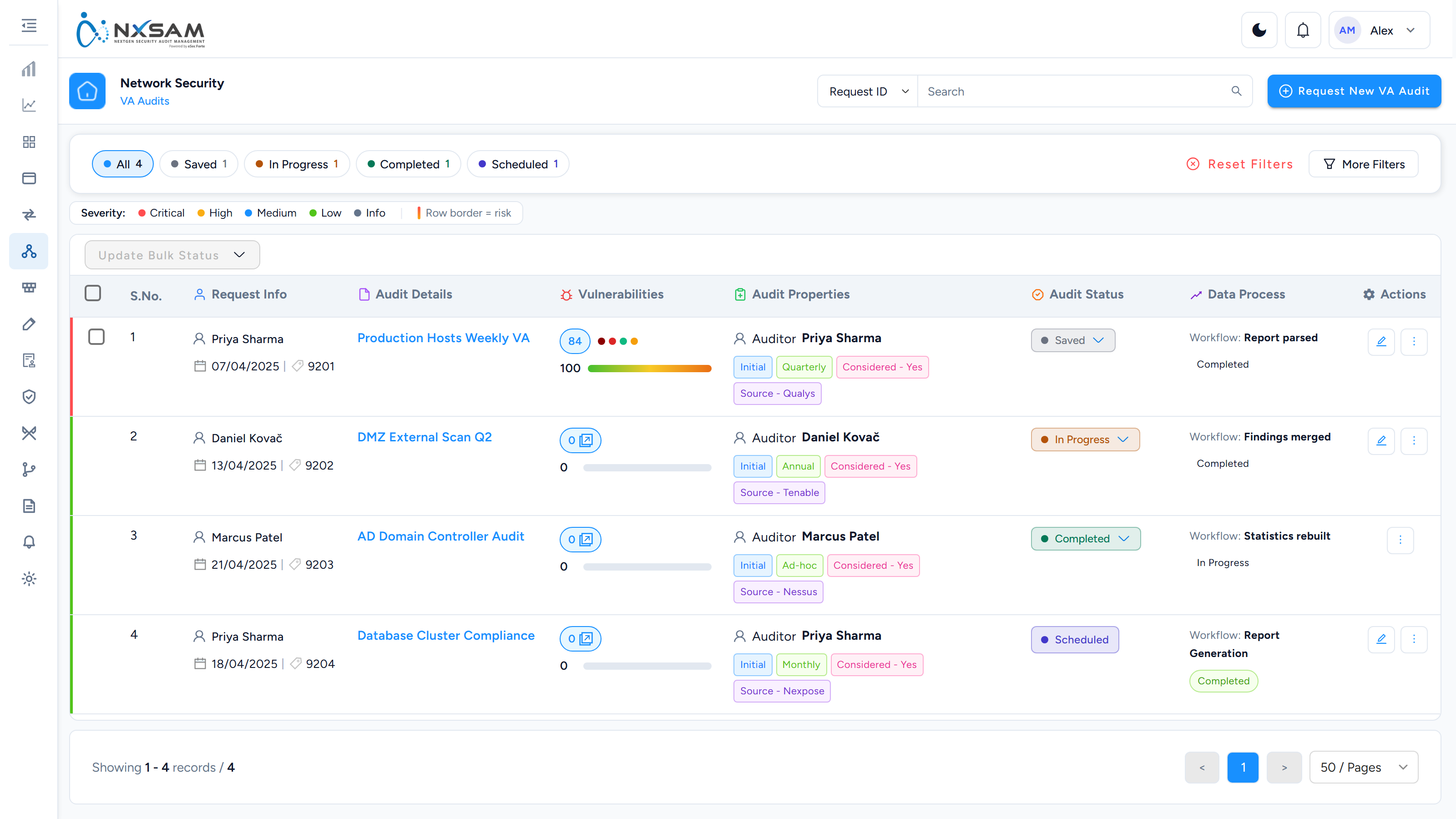
Fill the audit's name, type, category and cycle. Properties marked mandatory must be completed before the form will save — which properties are mandatory depends on the asset type and audit type together, so two audits can demand different fields.
After you save: the audit exists in its first status and appears in the list. It counts towards nothing yet.
One audit at a time per asset, where the platform is set that way
If an asset in your scope already has a VA audit in progress, the request may be refused with a message naming the rule — only one on-going VA audit per asset. That is a platform setting (System → System Settings) rather than a fault: two concurrent scans of one host would produce two sets of findings for one state. Wait for the running audit, or take the asset out of this one's scope.
Assign an auditor now
An audit can be requested and approved with no auditor assigned, and then cannot be worked. An audit sitting in an approved state with nothing happening is usually this.
2. Define the scope
Use Manage Audit Scope on the audit's row menu to set the hosts covered.
Export IPs downloads that list. Keep it: when the scanning team and the platform disagree about coverage later, comparing this export against the tool's own target list settles it in minutes.
3. Bring in the findings
Either upload a scan report, or let a configured integration collect it. Both are queued.
The Data Process column on the audit list shows how far a tool-fed audit has got. It is the difference between "the upload finished" and "the data is ready".
While it processes: counts move on every refresh. That is the job running, not the figures being wrong.
Counts that jump after an import
If totals appear to double, the identity rule changed — findings that were matched to existing records no longer match, so they arrive as new. Treat a change to the VA key configuration as a data migration, not a preference.
4. Work the findings
Open the audit to reach its findings.
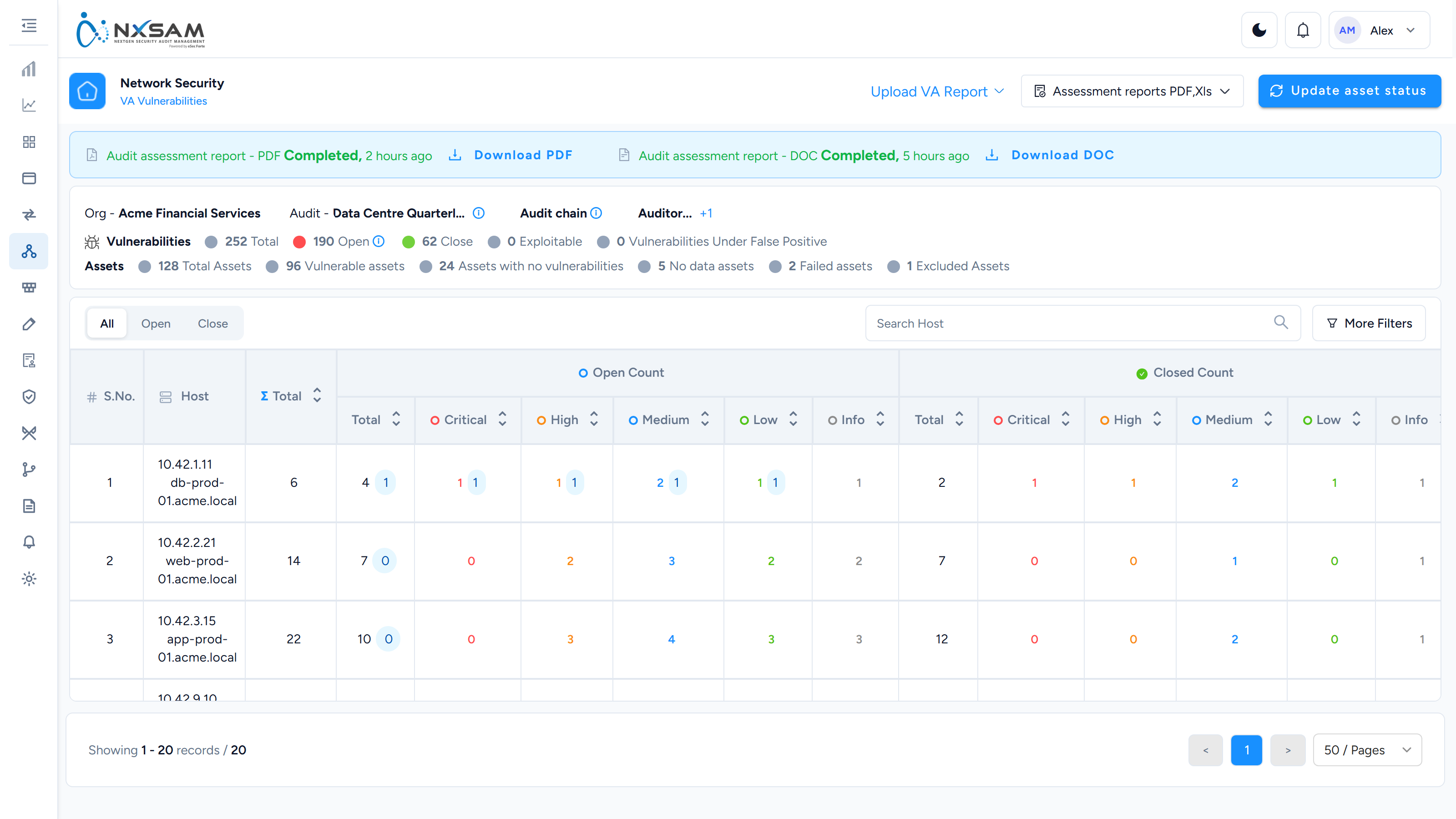
Each row is a host with its severity split. Drill in for the individual findings on that host.
Two fields track two different things, and both are needed:
- Validation — has this been confirmed as a real finding?
- Current Status — what is being done about it?
5. Approve
Nothing is counted anywhere until Validation reaches Approved.
After approval: the finding appears in dashboards and reports, Discovered On is populated — it is deliberately blank before this — and its SLA clock starts from the severity and asset type.
This single step explains most "my finding isn't in the dashboard" questions.
6. Remediate and close
As work proceeds, move Current Status — to be patched, patch in progress, and so on. Some transitions require a comment; the confirmation dialog says so before you commit.
Only two statuses actually close a finding
Validated and Exception Handled. Everything else — including Risk accepted — still counts as open.
That is deliberate: accepting a risk is a decision about treatment, not a statement that the weakness is gone.
7. Complete the audit, and make it count
Move the audit to a final state.
After completion: the audit becomes eligible to be considered, and the date it reached that state is the date every aggregate view files it under — not the scan date, and not the import date.
A scan run in March, imported in April and completed in May is a May audit. If a customer says findings appear in the wrong month, this is almost always why.
8. Re-test
Create a Re-Audit against the same scope. It inherits the parent's scope and is marked as a follow-up rather than as an independent assessment, so the two are not counted as two rounds of testing.
When something looks wrong
| Symptom | First thing to check |
|---|---|
| Finding not in the dashboard | Is it approved? Is the audit considered? |
| Audit in the wrong month | The date it reached a final state |
| Numbers keep changing | Data Process — it is still running |
| Numbers doubled | The vulnerability key configuration changed |
| Action missing from a menu | Your role — hidden, not disabled |
| List looks empty | A filter is still applied from an earlier screen |